
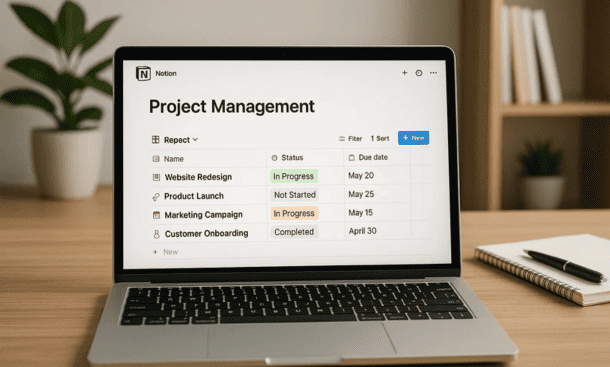
Projects collapse under their own complexity when information scatters across tools. I spent months jumping between Trello for tasks, Google Sheets for timelines, and Slack for updates before realizing I was creating the chaos I was trying to prevent.
Notion databases solve this by putting everything in one flexible system. Tasks, timelines, notes, and files live together with relationships that show how work connects. You’re not forced into someone else’s idea of how project management should work.
Why Database Thinking Matters
Most project tools give you boards or lists or gantt charts and you pick one. Notion gives you a database where the same information displays in whatever format helps you right now. This shift from tool-specific views to data-first thinking changes everything.
A task isn’t just a card on a board. It’s a database entry with properties like assignee, due date, priority, and status. You can view that same task in a kanban column, a calendar slot, a timeline bar, or a table row. The data stays consistent while the presentation adapts.
This matters because different people need different views. Designers want to see their tasks in a list. Project managers want timeline visibility. Executives want status dashboards. With a database approach, you build once and display many ways.
The relationships between databases are the real power. Your tasks database can relate to a projects database, which relates to a clients database, which relates to a team database. Click into any item and see everything connected to it. This web of information mirrors how work actually happens.
Setting Up Your Core Projects Database
Start with a projects database that tracks your active initiatives. This is the high-level view of what your team is working on, not the individual task level yet.
Create a full-page database and name it Projects or Active Initiatives. The properties you include should match how you evaluate project health. I use these core properties:
Project name as the title field. Keep names clear and descriptive. Instead of “Q1 Initiative” use “Customer Dashboard Redesign” so people immediately understand what it is.
Status shows where each project stands. I use categories like Planning, Active, On Hold, Completed, and Cancelled. On Hold is important because projects pause for legitimate reasons and you want to track them separately from failed projects.
Priority indicates importance. High, Medium, Low works for most teams. I avoid numerical systems because they create false precision. If you’re constantly debating whether something is priority 3 or priority 4, you’re wasting time.
Owner identifies who drives the project forward. This should be one person even if many people contribute. Shared ownership often means nobody feels responsible.
Start date and end date give you timeline boundaries. I use date range properties rather than separate fields because they display better in timeline views. These dates will shift and that’s fine, but having targets matters.
Budget or resources tracks what you’re spending or allocating. This might be dollars, person-weeks, or just a rough estimate. Scale this to your company stage. Early startups might skip this entirely.
Team members shows everyone involved beyond just the owner. I use a multi-select person property so you can see the full project team at a glance.
Related to connects projects that depend on each other or share context. This relation property links back to the same projects database, creating a network of related work.
Building a Tasks Database
The projects database tracks initiatives but you need a tasks database for actual work items. This is where individual action items, deliverables, and subtasks live.
Create another full-page database called Tasks or Action Items. This database needs different properties than projects because it operates at a more granular level.
Task name as the title should be action-oriented. Instead of “Research” write “Research competitor pricing models.” The specificity helps assignees know exactly what to do.
Assigned to shows who owns completing this task. Only one person should be assigned even if multiple people collaborate. Split unclear tasks into separate items with clear owners.
Due date creates accountability. I prefer actual dates over relative timelines like “this week” because dates are unambiguous. You can always change dates but you can’t track patterns without them.
Status tracks progress through your workflow. I use Not Started, In Progress, Blocked, and Complete. Blocked is critical because it surfaces obstacles that need attention.
Priority helps with daily decision-making. When someone looks at their task list, they should immediately know what matters most.
Project relation links each task to its parent project. This is a relation property connecting to your projects database. Now you can see all tasks for a project, and from any task you can jump to project context.
Effort estimate gives a sense of task size. I use Small, Medium, Large rather than hours because precise estimates are usually wrong anyway. This helps with workload balancing.
Tags or labels let you categorize tasks by type. You might use tags like Design, Development, Content, or Bug Fix. This helps when you want to filter to specific work types.
Creating Useful Views
Views transform your databases from static tables into dynamic work tools. The same underlying data serves multiple purposes depending on how you display it.
For the projects database, create a gallery view showing project cards with status colors. This works great for team dashboards where you want visual status at a glance. Group by priority so high-priority projects are immediately visible.
Add a timeline view to show project schedules. Set it to group by team or status and you see when different initiatives are happening. This reveals resource conflicts and helps with capacity planning. I reference this view in weekly leadership meetings.
Create a board view grouped by status to manage your project pipeline. Columns for Planning, Active, and On Hold let you drag projects between phases. This is useful during quarterly planning when you’re deciding what to start next.
For the tasks database, a board view grouped by status is your main work interface. Not Started, In Progress, Blocked, and Complete columns create a kanban flow. People drag tasks across as they work and blockers become immediately visible.
Build a calendar view to see task due dates over time. This prevents everything from piling up on the same day and helps individuals plan their week. You can also create calendar views filtered to specific people to see their personal workload.
Make table views for detailed task management. These show all properties at once and let you sort and filter aggressively. I use a table view during sprint planning when we’re grooming the backlog and assigning work.
Create filtered views for common needs. A view showing only my tasks helps individuals focus. A view filtered to high priority tasks shows what matters most. A view showing blocked items surfaces problems. These specialized views reduce noise.
Linking Projects and Tasks Effectively
The relation between projects and tasks is where Notion’s database power shines. Done right, this connection creates seamless navigation between strategic and tactical work.
When you create a task, always set the project relation. This single link enables bidirectional navigation. From the task you can click through to see full project context, objectives, and team. From the project you can see all related tasks and their status.
Use rollups to surface task information at the project level. A rollup can count how many tasks are complete, how many are blocked, or calculate the percentage done. This gives project owners visibility into progress without diving into task details.
I add a tasks relation property to my projects database that rolls up task count and completion percentage. Now when I look at my projects board, I see progress metrics directly on each card without clicking through.
Create linked databases to show project-specific task views. On each project page, add a linked database pointing to your tasks database, filtered to only show tasks for that project. Now project pages become command centers showing everything related to that initiative.
Managing Multiple Projects Simultaneously
Most teams juggle several projects at once and the challenge is maintaining visibility without getting overwhelmed. Database properties and views help you see patterns across projects.
Use a projects dashboard page that embeds filtered views. Show active projects, upcoming deadlines, and blocked tasks all on one page. I check this dashboard every morning to understand what needs attention.
Track dependencies between projects using the related to property. When Project A can’t finish until Project B delivers something, make that relationship explicit. This helps with sequencing and prevents surprises.
Monitor workload distribution using person properties and views. Create a view grouped by assigned to and you immediately see if one person has 15 tasks while another has 2. Rebalance before it becomes a problem.
Use status updates and comments to communicate progress. I add weekly updates to project pages summarizing what happened, what’s next, and any concerns. This creates a historical record and keeps stakeholders informed without meetings.
Customizing for Your Team’s Workflow
Every team works differently and Notion databases should reflect your specific needs. The structure I described is a starting point but you’ll need to adapt it.
Add properties that support your decision-making. If you need to track customer impact, add a field for that. If regulatory compliance matters, add compliance status. The database should capture information you actually use, not theoretical best practices.
Adjust statuses to match your process. If your team uses a different workflow than Planning, Active, On Hold, change it. The labels should reflect how you actually talk about work.
Create templates for common project types. If you frequently run similar projects, make a template that pre-populates relevant tasks, team members, and structure. This saves setup time and ensures consistency.
Experiment with views until you find what your team actually uses. I’ve created elaborate views that nobody touched and simple views that became central to daily work. Pay attention to which views people reference and refine those.
Maintaining Your Project Databases
Databases get messy without maintenance. Old projects accumulate, completed tasks clutter views, and what started organized becomes chaotic.
Archive completed projects regularly. I move finished projects to a Completed view at the end of each quarter. They’re still searchable but don’t clutter active work views.
Clean up orphaned tasks that no longer connect to active projects. These happen when projects get cancelled but tasks remain. Delete or archive them so they don’t create confusion.
Review properties quarterly. If nobody uses a property, remove it. If you’re consistently missing information, add a property. The database should evolve with your needs.
Standardize naming conventions and enforce them gently. When someone creates a project called “Thing” remind them to use descriptive names. Consistency makes search and filtering more effective.
Your project management database becomes the nervous system of your operation. Information flows through it, decisions get documented in it, and progress happens within it. The notion project management database you build should make work more visible and coordination easier, and when integrated with your broader notion for startups system, it creates the infrastructure that lets your team move fast without falling apart.
About the Author

Melanie Hart
Co-founder of Point of SaaS | SaaS Strategist Helping businesses leverage software innovation to optimize performance, streamline workflows, and achieve sustainable growth.
Did you find this helpful?
Your feedback helps us curate better content for the community.