
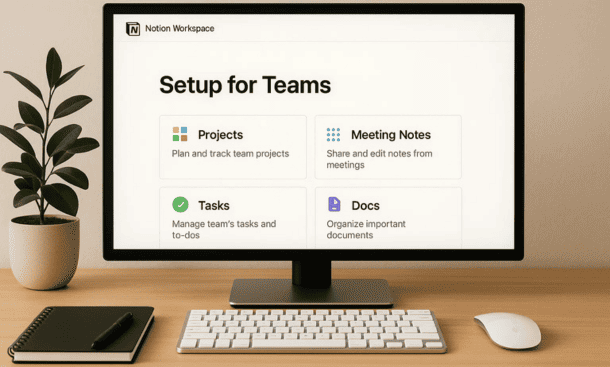
The moment you invite your first team member to Notion, your workspace stops being a personal notebook and becomes shared infrastructure. I learned this when I brought three people into a workspace I’d been using solo for months. Pages I understood perfectly made zero sense to them, and within a week we had duplicate documents and confusion about where things should go.
Setting up a workspace properly from the beginning saves you from that chaos. It’s not about creating the perfect system, because that doesn’t exist. It’s about establishing clear patterns that make sense to everyone using it.
Understanding Workspace Structure
Notion workspaces have a hierarchy that might not be obvious at first. At the top level you have your workspace itself, which contains all your pages. Within that, you can create a sidebar structure using pages and sub-pages, and you can organize everything with teamspaces for different groups.
The sidebar is what people see when they open Notion. A cluttered sidebar means people waste time hunting for things. A clear sidebar means they jump straight to what they need. I structure mine with top-level pages for major areas like Projects, Resources, and Team, then nest related content underneath.
Teamspaces are Notion’s way of creating separate sections with their own permissions. If you have a marketing team and an engineering team, they might not need to see each other’s daily work. Teamspaces let you partition things without creating entirely separate workspaces.
Setting Up Permissions Correctly
This is where most startups mess up. They either make everything editable by everyone, which leads to accidental deletions and overwrites, or they lock everything down so tightly that people can’t get work done.
Notion has workspace-level roles and page-level permissions. At the workspace level, you can make someone a full member, which gives them broad access, or a guest, which limits them to specific pages. Page-level permissions let you control who can view, comment, or edit individual pages.
My rule of thumb is this: default to edit access for your core team, use comment-only access for stakeholders who need visibility but shouldn’t change things, and use view-only for information that people reference but never modify.
You also want to think about who can share pages externally. Giving everyone permission to share means someone might accidentally expose sensitive information. Limiting that permission to admins prevents leaks without creating bottlenecks.
Creating a Logical Page Hierarchy
Your page structure should reflect how people think about work, not how you personally organize information. I made the mistake early on of creating elaborate nested systems that made sense to me but confused everyone else.
Start with broad categories that align with how your team operates. Most startups need something like Company Info, Projects, Resources, and Team. Under Company Info you might have things like mission and values, brand guidelines, and policies. Under Projects you organize active initiatives. Resources holds templates and documentation. Team contains individual pages or meeting notes.
The depth matters too. If someone has to click through five levels to reach a page they use daily, your hierarchy is too deep. Three levels is usually the sweet spot. Anything beyond that should probably be its own section or linked differently.
Use consistent naming conventions across your workspace. If you abbreviate some page names and spell out others, people won’t find what they’re looking for. Decide on patterns like whether you include dates in meeting note titles or how you label templates, then stick to them.
Onboarding New Team Members
When someone joins your workspace, they should understand how to use it within 30 minutes. This means having an onboarding page that explains your structure, conventions, and where to find key resources.
I create a Start Here page that lives at the top of the sidebar. It includes a quick overview of the workspace layout, links to the most important pages, instructions for how we use different features, and answers to common questions. New people read this once and they’re oriented.
Walk them through creating their first page. Show them how to use databases if that’s part of your workflow. Explain any custom templates you’ve built. The goal isn’t to make them Notion experts immediately, but to prevent them from feeling lost.
Give them edit access to a sandbox area where they can experiment without worrying about breaking anything. People learn by doing, and having a safe space to try things reduces anxiety about using the tool incorrectly.
Templates for Consistent Workflows
Templates are one of Notion’s most powerful features for team collaboration. When everyone uses the same template for meeting notes or project kickoffs, you eliminate confusion about what information should be captured.
Create templates for recurring documents. Meeting notes should have a consistent structure with sections for attendees, agenda, discussion points, and action items. Project pages should include fields for objectives, timeline, team members, and status updates. These patterns make information predictable.
Store your templates in a dedicated Templates page that’s easy to find. Include instructions for when and how to use each one. You can also set up database templates that automatically populate certain fields, saving time and ensuring nothing gets forgotten.
The key is making templates helpful without being restrictive. If a template has 20 fields and people only use five of them, it’s too complex. If it’s so rigid that people constantly have to work around it, it’s not serving its purpose.
Maintaining Workspace Organization Over Time
Workspaces get messy. Pages multiply, old content accumulates, and what made sense six months ago becomes confusing. You need regular maintenance to keep things usable.
Schedule quarterly cleanups where you archive outdated pages, consolidate duplicates, and reorganize sections that have grown unwieldy. Notion lets you move pages easily, so restructuring doesn’t have to be painful.
Establish conventions for archiving. I create an Archive section at the bottom of the sidebar where old projects and outdated resources go. This keeps them accessible without cluttering active areas. Make sure your team knows to use it.
Encourage page owners. Every major page should have someone responsible for keeping it updated. When ownership is unclear, pages stagnate. When someone feels responsible, they maintain it.
Use comments and mentions to keep discussions organized. Instead of having conversations in Slack about content in Notion, use Notion’s commenting feature to keep context together. Tag people with @ mentions so they get notifications and can respond directly.
Making Search and Discovery Easy
Even with perfect organization, people need to search. Notion’s search is powerful if you set things up right. Use descriptive page titles that include keywords people might search for. If you have a page about customer onboarding, make sure “customer onboarding” is actually in the title.
Create a wiki-style linking structure where related pages reference each other. When you mention another page in your content, link to it. This helps with navigation and makes information more discoverable. It also reinforces the connections between different parts of your workspace.
Consider creating hub pages for major topics. These are pages that serve as directories, linking out to all related content. A Marketing hub page might link to your content calendar, campaign briefs, brand guidelines, and analytics dashboards. People can start there and branch out to what they need.
Building Collaboration Habits
The workspace setup is only half the equation. The other half is getting your team to use it consistently. This means establishing habits around how you work in Notion.
Make Notion the single source of truth for documentation. If important information exists in Slack threads or email, it’s effectively invisible. Train your team to document decisions and updates in Notion where they’re permanent and searchable. A strong notion workspace setup for teams depends on everyone committing to this practice.
Use page linking liberally in other tools. When you send a Slack message about a project, include the Notion link. When you’re in a meeting, share the relevant Notion page. The more you reference the workspace in your daily tools, the more central it becomes.
Set expectations around update frequency. If you’re using Notion for project tracking, everyone should know how often to update their pages. Weekly is usually reasonable for most teams. Daily might make sense for fast-moving projects.
Your workspace is a living system that evolves with your team. The setup I’m using now is different from what I used a year ago because the team and our needs changed. Stay flexible, listen to how people are actually using the space, and adjust accordingly.
About the Author

Melanie Hart
Co-founder of Point of SaaS | SaaS Strategist Helping businesses leverage software innovation to optimize performance, streamline workflows, and achieve sustainable growth.
Did you find this helpful?
Your feedback helps us curate better content for the community.