
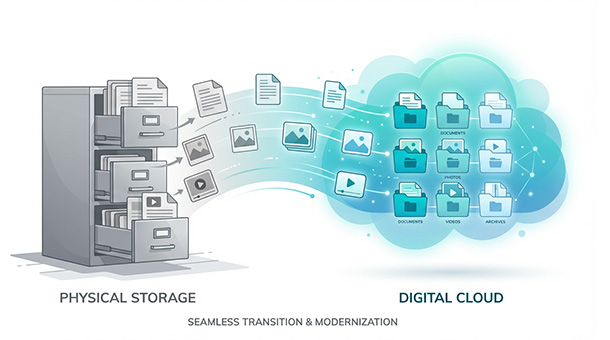
Your app needs to handle profile pictures, product images, or PDF invoices, but storing files isn’t as simple as dragging them into a folder on your computer. Most founders don’t realize that databases aren’t built to hold large files, they’re built to hold information about those files. That’s where Supabase storage comes in, acting like a digital warehouse where your users’ photos, videos, and documents live safely. Understanding how Supabase organizes your startup’s backend means knowing where files go, how users access them, and what happens when your storage needs grow.
Why databases and files don’t mix well
Databases are built for structured data, not raw files
Your database excels at storing and retrieving structured information like names, email addresses, dates, and numbers. It’s optimized for answering questions like “show me all users who signed up last week” or “find products under $50.” This structured approach makes databases incredibly fast and efficient.
But when you try storing a 5mb profile photo directly in a database, you’re forcing it to handle something it wasn’t designed for. Large files bloat database size, slow down queries, and consume expensive database storage that costs significantly more than simple file storage.
Think of it like storing furniture in a filing cabinet. Technically possible if you disassemble everything, but wildly inefficient compared to using a warehouse designed for large items.
The smarter approach separates concerns
Instead of jamming files into your database, you store files in a dedicated storage system and keep only the file’s reference URL in your database. When a user uploads a profile photo, Supabase storage receives the image, generates a permanent URL, and your app saves that URL string in the user’s database record.
Later, when you need to display the photo, your app reads the URL from the database and loads the image from storage. The database stays lean and fast, while storage handles what it does best: holding large binary files.
This separation of concerns is how every major platform works. Instagram doesn’t store billions of photos in a traditional database. Neither should you.
How Supabase storage is organized
Buckets are your top-level containers
Supabase storage uses “buckets” as the main organizational unit. Think of buckets like top-level folders or departments in your digital warehouse. You might create one bucket for user avatars, another for product images, a third for customer invoices, and a fourth for marketing assets.
Buckets aren’t just organizational tools. They also define security rules, access permissions, and file size limits. Public buckets let anyone view files without authentication. Private buckets require users to be logged in and authorized.
This flexibility means you can store publicly accessible product photos in one bucket while keeping sensitive documents like contracts or financial records in a separate private bucket with strict access controls.
Folders and files work like your computer
Inside each bucket, you organize files using folders exactly like you would on your computer. A “users” bucket might have folders named by user ID: “user_123,” “user_456,” and so on. Inside each user folder, you store that user’s uploads: profile photos, documents, or any other files they’ve added.
This hierarchical structure makes files easy to find, backup, and manage. You can delete an entire user’s folder when they close their account, or migrate specific folders to different storage tiers as your needs evolve.
Supabase doesn’t limit how deeply you nest folders, though keeping structures relatively flat (two to three levels maximum) makes file management simpler and reduces the chance of errors.
File paths become URLs automatically
Every file you upload gets a unique URL that looks something like: “https://yourproject.supabase.co/storage/v1/object/public/avatars/user_123/profile.jpg.” This URL is what you store in your database and use throughout your app.
The URL structure breaks down logically. It starts with your project domain, identifies the storage service, specifies whether the bucket is public or requires authentication, includes the bucket name, and ends with the folder path and filename.
These URLs never change unless you deliberately delete or rename the file, which makes them reliable references you can trust long-term.
Uploading files from your app
The upload process is straightforward
When a user selects a file in your app, your frontend code captures that file and sends it to Supabase storage using their JavaScript library. The code specifies which bucket to use, what folder path to store it under, and what filename to assign.
Supabase receives the file, stores it in the specified location, and returns the file’s permanent URL. Your app then saves that URL to your database so you can retrieve and display the file later.
This entire process happens in seconds for typical files, and Supabase handles the heavy lifting of receiving, validating, and storing the data securely.
Setting file size limits prevents abuse
In your bucket settings, you can define maximum file sizes to prevent users from uploading gigantic files that consume your storage quota. For profile photos, you might set a 5mb limit. For document uploads, maybe 20mb. For video content, perhaps 100mb.
These limits protect both your storage costs and user experience. A user trying to upload a 500mb video as a profile picture probably made a mistake, and blocking it early saves everyone frustration.
Supabase enforces these limits automatically. If a user tries uploading an oversized file, the request fails with a clear error message your app can display.
Handling upload errors gracefully
File uploads can fail for various reasons: poor internet connections, oversized files, incorrect permissions, or reaching storage limits. Your app needs to handle these failures gracefully instead of crashing or leaving users confused.
Most Supabase client libraries provide built-in error handling that tells you exactly what went wrong. Your app can then display helpful messages like “your file is too large, please upload an image under 5mb” or “upload failed, please check your connection and try again.”
Good error handling turns potential frustration into minor inconveniences users can resolve themselves.
Controlling who can access stored files
Public buckets for content everyone should see
Public buckets are perfect for content that doesn’t need protection: product images on an e-commerce site, blog post featured images, company logos, or marketing materials. Anyone with the URL can view these files without logging in.
This makes public buckets ideal for content you want to share widely, embed in emails, or display on public web pages. The trade-off is that you can’t restrict access later without moving files to a private bucket.
Most apps use public buckets for at least some content, even if they also maintain private buckets for sensitive data.
Private buckets for sensitive documents
Private buckets require authentication before anyone can access files. When your app requests a file from a private bucket, it must include the user’s authentication token proving they’re logged in and authorized.
This security layer protects sensitive information like financial documents, medical records, contracts, or any user-generated content that should remain private. Even if someone discovers the file URL, they can’t access it without proper credentials.
You configure access rules that define which users can view which files, similar to row-level security for database tables. A user might access only their own files, or team members might share access to files within their organization.
Signed URLs for temporary access
Sometimes you need to grant temporary access to private files without permanently changing permissions. Signed URLs solve this by generating special links that work for a limited time, typically minutes or hours.
When a user requests a private file, your app generates a signed URL that expires after 60 minutes. The user can download or view the file during that window, but the link becomes invalid afterward.
This pattern works perfectly for sharing confidential documents, providing temporary download links, or allowing external collaborators limited access without creating full user accounts.
File storage doesn’t work in isolation — it connects directly to your authentication system for access control, your database for storing file references, and your edge functions for processing uploads automatically. Understanding how these pieces fit together as a complete backend is what separates founders who build confidently from those who piece things together and hope for the best. If you want to see how storage fits into the full picture of what Supabase offers, The Entrepreneur’s Guide to Supabase walks through every feature and how each one serves your startup — from your first bucket to your thousandth user.
Optimizing storage costs as you scale
Understanding what you actually pay for
Supabase storage pricing is based on the total amount of data you store and the bandwidth used when files are downloaded or uploaded. The free tier includes 1gb of storage and 2gb of bandwidth monthly, which handles hundreds or thousands of users depending on file sizes.
Storage costs are straightforward: you pay per gigabyte stored per month. If you store 10gb of files, you pay for 10gb. Bandwidth is trickier because it fluctuates based on user activity. A viral post with an embedded image might consume bandwidth quickly as thousands of people view it.
The pro plan at $25 monthly includes 100gb of storage and 200gb of bandwidth. Beyond that, you pay for additional storage at $0.021 per gb monthly and bandwidth at $0.09 per gb transferred.
Compression reduces costs dramatically
Before uploading images, compress them using tools like TinyPNG or programmatically with libraries that reduce file size without visible quality loss. A 5mb photo compressed to 500kb saves 90% of storage space and bandwidth.
Video compression offers even larger savings. A 100mb raw video might compress to 10mb with minimal quality degradation, saving you tenfold on storage and dramatically reducing bandwidth when users stream it.
These optimizations compound over time. Saving a few megabytes per user might seem trivial early on, but with 10,000 users, those savings translate to hundreds of dollars monthly.
Implementing tiered storage strategies
Not all files need instant access. Recent uploads or frequently viewed files should live in fast, accessible storage. Older files that users rarely access could move to cheaper archival storage.
Supabase doesn’t offer native tiered storage yet, but you can implement your own by periodically moving old files to services like AWS S3 Glacier or Cloudflare R2, which cost fractions of a penny per gigabyte.
This strategy works well for apps with historical data that must be retained but isn’t actively used, like old customer invoices, archived projects, or historical backups.
Common file storage patterns for startups
User-generated content platforms
Apps like social networks, portfolio sites, or community platforms let users upload and share photos, videos, or documents. These apps typically use public buckets for content meant to be shared and private buckets for drafts or personal files.
A photo-sharing app might store published photos in a public bucket so anyone can view them, while storing unpublished drafts in a private bucket accessible only to the creator. This separation maintains privacy while enabling sharing when ready.
User-generated content platforms must also handle content moderation, file type restrictions, and abuse prevention, all of which can be configured in Supabase bucket settings.
E-commerce and marketplace apps
Online stores need product images, vendor logos, and customer-uploaded photos for reviews or custom orders. Product images usually live in public buckets since they appear on publicly accessible product pages.
Customer-uploaded order attachments, like custom design files or reference photos, belong in private buckets accessible only to the customer and vendor handling the order. This protects customer privacy while facilitating order fulfillment.
E-commerce apps also store invoices and receipts as PDFs in private buckets, generating signed URLs when customers request to download them from their order history.
SaaS tools with document management
Project management tools, CRMs, or collaboration platforms let teams upload and share files within workspaces. These apps use private buckets with team-based access rules that grant access only to workspace members.
When a user uploads a file to a project, the file goes into a private bucket with permissions checking team membership before allowing downloads. This ensures that companies can’t accidentally access each other’s files even if they use the same platform.
Document management apps also implement versioning, where multiple versions of the same file coexist so teams can roll back to earlier drafts if needed.
Handling file deletions and cleanup
Manual deletion is simple but doesn’t scale
Deleting files in Supabase is as simple as calling a delete function with the file path. When a user deletes their profile photo, your app sends a delete request to Supabase storage, and the file disappears immediately.
This manual approach works fine for individual file deletions, but it doesn’t handle orphaned files when users delete their accounts, abandon uploads halfway through, or leave draft content unpublished indefinitely.
Implementing automated cleanup routines
Edge functions can automate file cleanup by running scheduled tasks that identify and delete orphaned files. A function might run weekly, checking for files older than 30 days that aren’t referenced in any database records.
For example, if a user starts uploading a profile photo but closes the browser before saving, that file sits in storage unused. A cleanup function finds it, verifies it’s not linked to any user record, and deletes it.
This prevents storage costs from ballooning due to forgotten or abandoned files that nobody needs but continue consuming space.
Soft deletes for compliance and recovery
Some apps need to retain deleted files temporarily for compliance reasons or to allow recovery if users change their minds. Instead of permanently deleting files, you move them to an “archived” folder with a deletion timestamp.
A scheduled function checks archived files and permanently deletes anything older than 30 or 90 days, depending on your retention policy. This gives users a recovery window while ensuring long-term storage doesn’t fill with useless data.
Soft deletes also help if you accidentally delete important files and need to recover them quickly. You restore from the archive instead of from backups, saving hours of panic and downtime.
If you’re building file storage into your app while also thinking about long-term flexibility, learning why Supabase’s open-source model protects your business from vendor lock-in ensures you maintain control over your infrastructure as you grow.
About the Author

AISalah
Bridges linguistics and technology at PointOfSaaS, exploring AI applications in business software. English Studies BA with hands-on back-end and ERP development experience.
Did you find this helpful?
Your feedback helps us curate better content for the community.